 NOTICENINJA SUPPORT SITE
The NOTICENINJA
Support Site is used to submit tickets to the Notice Ninja team. These tickets
can be linked to development items so you can track your issue from entry,
research, development to being fixed and published in an update. You can submit
any type of ticket that are related to NOTICENINJA or any
services we provide.
Each client
should have one support account setup from each department that uses NOTICENINJA.
All tickets are only viewable by the user that entered them. You can setup a
distribution list as an account so multiple users can manage tickets.
CREATING
AN ACCOUNT:
WEBSITE: https://noticeninja.atlassian.net/servicedesk/customer/portals
If you have
not used Jira before you will need create an account (It’s a free service).
Click on the Sign-up link and follow the directions to create an account.
1. Sign Up for an account.
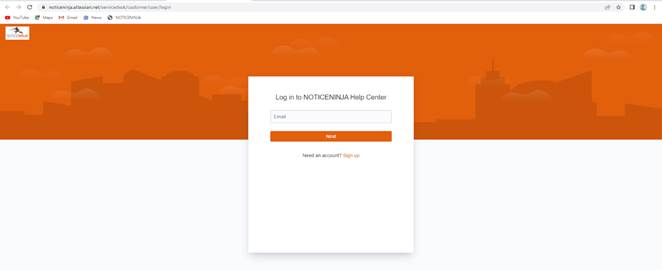
2. Sign Up E-mail: The system will send you a link to
use for the sign up. You may need to check your junk folder if it’s not in your
in-box within 2 minutes.
a. Click the Link to Log In. You may
need to reset your password on the 1st attempt.
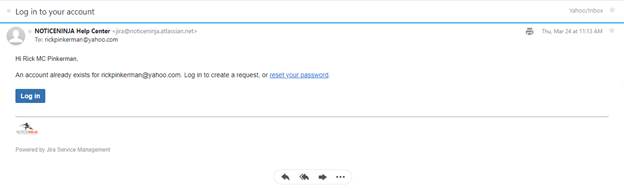
CREATING
A SUPORT TICKET:
To create a
support ticket for NOTICENINJA follow the below steps.
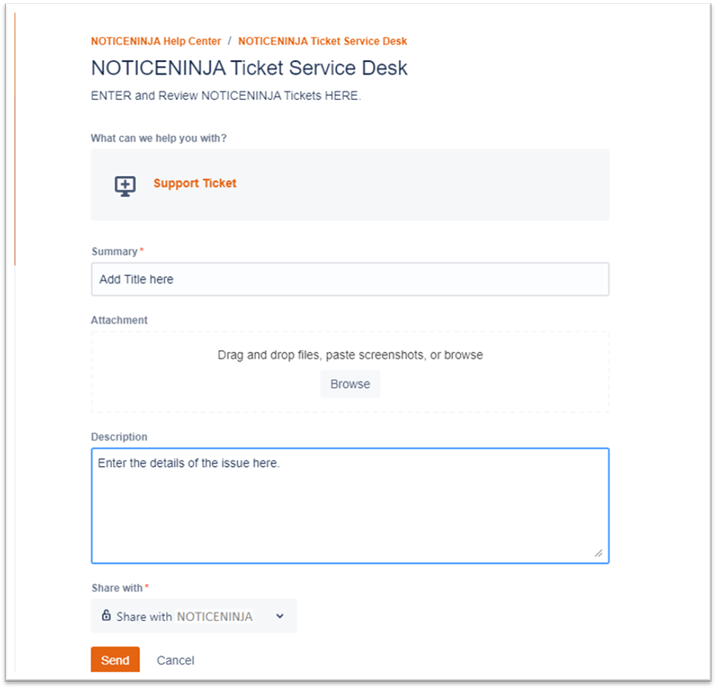
1. Click the Create Support Ticket in NOTICENINJA.
2. It will take you to our Jira support
site.
3. Click on the Support Ticket icon to
enter a new ticket.

4. Once the Ticket Entry screen opens
you Enter the Summary (Title) of the ticket.
5. If you need to add an attachment you
can add one here or you can add it later.
6. Enter the Description with details
about the issue or item. Include print screens and anything that will help the
support team identify the action that was taken and what screen you were on at
the time.
MANAGING
EXISTING SUPPORT TICKETS:
Once you
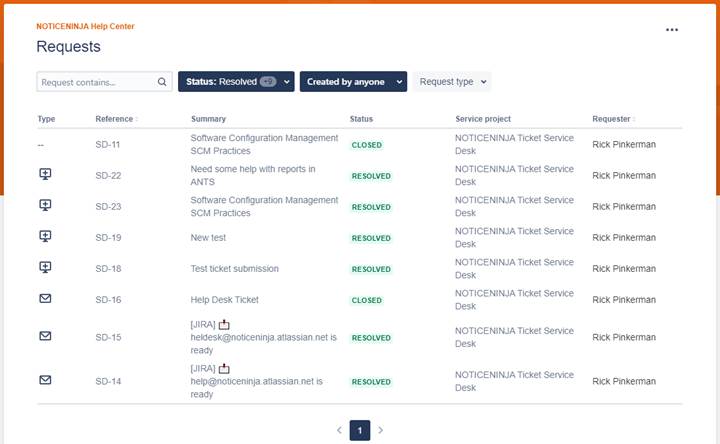
have tickets in the system you can search, review, and update them as needed.
You will get automatic e-mail from the system when a status has been changed or
notes entered by one of our service reps.
You can
filter the tickets to review Active (open) and closed tickets. You can re-open
a ticket if needed.
If you run
into any issues with the support site, please e-mail support@noticeninja.com